
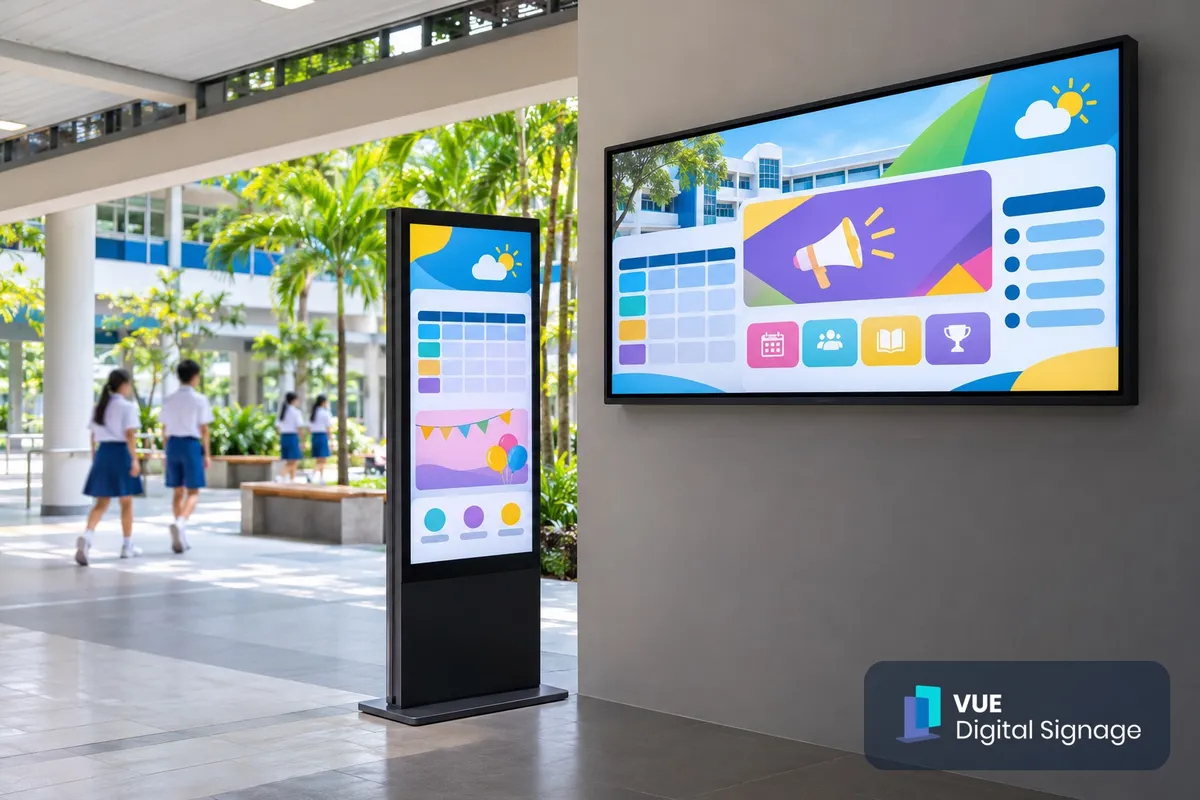
Digital signage for schools is a network of screens around a campus that show notices, timetables, event information and emergency messages, all updated from one computer instead of being printed and pinned up. In a school it covers three main jobs: replacing paper notice boards in corridors and foyers, showing class and room information at doorways, and putting large screens in halls and canteens for assemblies and events.
This guide explains where screens are most useful on a school campus, which type of display fits each space, how the content is managed, and what to check before you buy or rent. It is written for school ICT, operations and facilities teams, and for private schools and enrichment centres planning their first displays.
Key takeaways
- Start with the message, not the screen: decide what each location needs to show (notices, room schedules, wayfinding, celebrations) and who updates it.
- Match the screen to the space: wall-mounted signage for corridors and foyers, small class boards or room panels at doors, floor-standing touch kiosks for open areas, interactive whiteboards inside classrooms, and LED walls for halls.
- Choose commercial displays rated for long daily hours. Consumer TVs are not designed for that.
- Plan content management early. Central CMS software lets one person schedule content to every screen on campus.
- Check network, power points, mounting and data protection (cameras, face verification) before installation.
What is digital signage used for in schools?
Schools use digital signage to share information quickly with students, staff and visitors without printing. Typical uses are daily announcements, timetable and room changes, event and CCA notices, celebrating achievements, visitor welcome messages, wayfinding, and urgent messages that need to reach every screen at once.
The most common uses on a school campus are:
- Digital notice boards in corridors, stairwells and the foyer, replacing printed posters that go out of date.
- Class and room information at classroom doors, labs and special rooms: which class is inside, the day's schedule, and room bookings.
- Visitor and parent information at the general office and entrance: welcome messages, directions and event details.
- Halls, canteens and sports facilities: assembly content, house points, results, menus and event schedules.
- Urgent messages: weather, closures or safety instructions pushed to every screen from one place.
This fits the direction of MOE's EdTech Masterplan 2030, which lists an "intelligent, responsive, digitally-equipped learning environment" among its outcome goals for schools, and EdTech infrastructure that supports school processes as a key enabler. Signage is a small, practical part of that: it is infrastructure for communication rather than for teaching.
Which type of screen suits each school space?
Each school space needs a different screen. Corridors and foyers suit wall-mounted displays of about 43 to 55 inches, classroom doors suit small touch class boards or room panels, open areas suit floor-standing touch kiosks, classrooms suit interactive whiteboards, and halls suit LED video walls or large displays.
| School space | Suitable display | What to look for | Example from Vue's range |
|---|---|---|---|
| Corridor, foyer, general office | Wall-mounted digital signage, landscape or portrait | 4K or Full HD, rated for long hours, built-in media player, portrait mounting option | Hikvision 43-inch slim signage DS-D6043UN-DP: 3840 x 2160, 500 cd/m², 7 x 24 h rating, wall mount horizontal or vertical |
| Classroom door, lab, special room | Electronic class board or room scheduling panel | Small size, touch, network connection, card or face sign-in only if you need it | Hikvision 22-inch class board DS-D6122TH-D/C or 10-inch scheduling panel DS-D5F10CB/BH |
| Atrium, library, open area | Floor-standing touch kiosk | Portrait screen, touch for directories and maps, stable base | Hikvision 55-inch touch floor-standing signage DS-D6055UT-D/S: 2160 x 3840, 10-point touch |
| Classroom (teaching) | Interactive whiteboard / interactive flat panel | Touch writing, screen sharing, size matched to room depth | Interactive whiteboards, 65 to 98 inches |
| Hall, auditorium, sports hall | LED video wall or large display | Size, pixel pitch for the viewing distance, brightness | LED video walls |
A few notes from the specifications:
- Class boards do more than show a timetable. The Hikvision DS-D6122TH-D/C has a 21.5-inch Full HD touch screen behind 3 mm anti-glare toughened glass, Wi-Fi and LAN, an IPX3 water-resistance rating, and a 2 MP camera with face verification, IC card swiping and access-control linkage. Its reliability rating is 7 x 16 hours, which covers a school day.
- Corridor signage needs a 7 x 24 hour rating if it stays on. The 43-inch DS-D6043UN-DP is rated 7 x 24 h and plays pictures, video, scrolling text, PDFs and web pages from its built-in Android player, so no separate PC is needed.
- Floor-standing kiosks are heavy. The 55-inch touch model weighs 46.5 kg without packaging, ships with caster wheels, and needs a power point nearby wherever it stands.
Example layout (illustrative, three-block secondary school): a portrait 43-inch display in the foyer for visitor welcome and the day's events, one landscape display per level in each block for notices, a 10-inch scheduling panel outside each lab and special room, and a floor-standing touch kiosk in the library for maps and CCA directories. For prize-giving day, the hall uses a rented LED wall.
You can browse the full range on our digital signage page.
Is a digital notice board the same as an interactive whiteboard?
No. A digital notice board is a display that shows scheduled content to people walking past, managed centrally. An interactive whiteboard is a large touch screen inside a classroom that a teacher writes on, annotates and uses to share lessons. A school can use both, and some software manages both.
The differences matter when you plan a budget:
- Who controls it. Notice boards are controlled by an administrator through content software. Interactive whiteboards are controlled by the teacher in the room.
- Interaction. Most notice boards have no touch; interactive whiteboards are built for writing with fingers or a stylus.
- Placement. Notice boards go in shared spaces; interactive whiteboards replace the projector and whiteboard at the front of a class.
There is overlap. Hikvision HikCentral FocSign, one of the content platforms Vue supplies, manages program design and release centrally for both digital signage terminals and interactive flat panels. That means a school can push an urgent notice to classroom panels as well as corridor screens. Our interactive whiteboard page covers classroom panels in more detail, and our scenarios page shows how displays, cameras and audio can link several classrooms into one shared lesson. For the classroom side, see interactive whiteboard vs whiteboard in schools.
How do schools manage content across many screens?
Schools manage content with digital signage CMS software. A staff member uploads notices, images and videos once, then schedules them to selected screens or groups of screens, such as all corridor displays, one block, or every screen on campus. Depending on the platform, the CMS runs in the cloud or on a server on the school network.
A simple way to set it up:
- Group the screens by location and audience: foyer, staff room, each level, classroom doors, hall.
- Create templates for recurring content: daily announcements, weekly events, room schedules, celebrations. Keep the school's colours and fonts consistent.
- Set a schedule: for example, morning announcements before assembly, CCA notices after school, and screens off or dimmed outside school hours to save power.
- Name content owners: who in the general office, ICT team or student council may publish, and who approves.
- Prepare an urgent-message template in advance, so that weather or safety notices can go out to every screen quickly.
Vue's software solutions page lists the content and device management tools we supply, including HikCentral FocSign and HikMedio.
What should a school check before buying digital signage?
Before buying, a school should confirm what each screen will show and who updates it, then check the site: power and network points, wall strength or floor space, sunlight and glare, daily operating hours, and whether any feature collects personal data. Ask for commercial displays and a demonstration of the content software.
Use this checklist when you request quotations:
- Location survey. Note the wall type, available power and data points, and how far people stand from each screen.
- Commercial rating. Ask for the daily operating hours each model is rated for (for example 7 x 16 h or 7 x 24 h) and whether it is a commercial display or a consumer TV.
- Brightness and glare. Corridors with strong daylight need a brighter screen or anti-glare glass. The DS-D6122TH-D/C class board is rated at 600 cd/m² behind anti-glare glass; the DS-D6043UN-DP and DS-D6055UT-D/S signage models are rated at 500 cd/m².
- Network. Decide between LAN and Wi-Fi, and check with your ICT team how the screens will join the school network.
- Content software. Ask to see the CMS: how screens are grouped, how scheduling works, and whether it also manages your interactive whiteboards.
- Mounting and safety. Wall brackets for heavy screens, cable management in student areas, and stable bases for floor-standing units.
- Data protection. If you plan to use cameras, face verification or card sign-in on class boards or room panels, agree what data is collected and how long it is kept. Schools that are not owned by the Government, such as Government-aided and independent schools, privately-funded schools and private education institutions, are covered by the PDPA, and PDPC's Advisory Guidelines for the Education Sector explain how it applies. Government schools follow public-sector data rules instead, so check with MOE.
- Support. Who installs, trains staff and handles faults, and how quickly.
Should a school rent or buy screens for events?
Buy screens that will be used every day, such as corridor notice boards, class boards and classroom panels. Rent screens for occasional events, such as open houses, graduation, sports day or exhibitions, where you need large displays or an LED wall for a few days without storing them afterwards.
Renting is useful when:
- The event needs a much larger screen than the school owns, for example an LED wall at the back of a hall.
- You want to test a floor-standing kiosk or a display size before committing to a purchase.
- The screen is needed for a fixed period only, such as an exhibition week.
Vue offers short-term rental of displays and LED video walls in Singapore for open houses, graduations and exhibitions.
Frequently asked questions
How much does digital signage for a school cost?
The cost depends on the number of screens, their sizes, mounting, the content software and installation. A single corridor display costs far less than a campus-wide network with class boards at every door. Contact us with your floor plan and the spaces you want to cover for a tailored quotation.
Can we use normal TVs as school notice boards?
You can, but consumer TVs are not designed to run for long hours every day and may need a separate media player or app that your signage software cannot manage. Commercial signage such as the DS-D6043UN-DP is rated for 7 x 24 hour operation and has a built-in player that the content software controls.
Do school notice boards need touch screens?
No. Corridor notice boards usually only show scheduled content, so touch is not needed. Touch is useful on floor-standing kiosks for maps and directories, on class boards at classroom doors, and on interactive whiteboards for teaching.
Do class boards need face recognition?
No. Face verification and card sign-in are features of some class boards and room panels, such as the DS-D6122TH-D/C, not a requirement for showing class information. If you do not need attendance or door access, ask us before ordering which models suit display-only use.
Planning screens for your school
Digital signage works best in a school when each screen has a clear job: notices in corridors, class information at doors, teaching on interactive whiteboards, and big moments on a hall screen. Start with a short survey of the spaces and the messages, choose commercial displays rated for school hours, and settle who manages the content.
Vue Digital Signage (about Vue Tech) supplies Hikvision digital signage, class boards, interactive whiteboards and LED walls in Singapore, with rental for events. See examples of past installations on our case studies page, or contact us to arrange a demo at our showroom.